
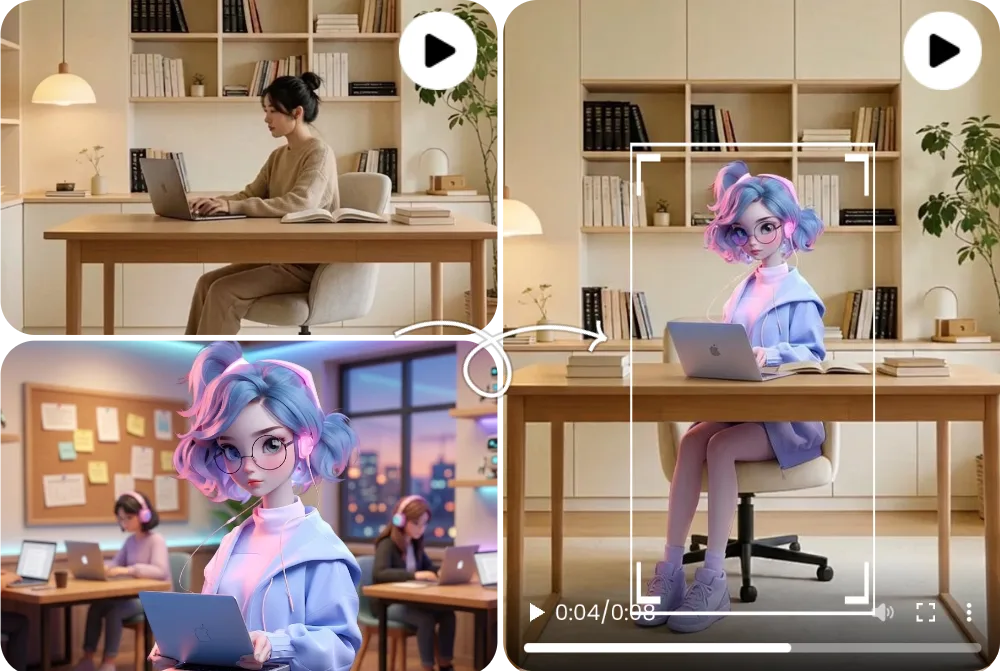
Before and After Character Replacement
A before-and-after character replacement example compares the source clip, replacement character image, and generated output side by side.
Character Replacement AI Video Generator
Character replacement AI replaces the visible subject in an existing video while keeping the original motion, camera framing, lighting, and scene context. FluxMov works best when you upload a clear source video and a readable replacement character image.
Change who appears in a video without rebuilding the entire shot. Upload a source clip, add a replacement character image, and generate a new video that keeps the original movement, camera framing, lighting, and scene flow.
Use FluxMov when the action already works, but the visible person, avatar, mascot, or stylized character needs to change. The source video controls motion, expressions, lighting, and camera flow while the replacement character image defines who should appear in the final result.
Character replacement AI is a video workflow that changes the visible subject inside an existing clip while preserving the movement and scene structure of the original video.
| Comparison | What it means |
|---|---|
| Character Replacement AI vs AI Face Swap | AI face swap usually focuses on replacing facial identity. Character replacement AI is broader: it can help replace the visible character, outfit, body presence, mascot identity, or stylized subject when the full scene needs to remain intact. |
| Character Replacement AI vs Full Body Swap | Full body character swap is useful when the person's posture, clothing, silhouette, or movement matters. FluxMov works best when the source character is clearly visible and the replacement image has a readable face, outfit, and body shape. |
| Character Replacement AI vs Motion Transfer | Use character replacement AI when you already have a video and want to replace the subject inside it. Use motion transfer when you want to animate a separate image or character using movement from another reference clip. |
Prepare the right files, choose the right model, generate, and review the result before publishing.
Choose the clip that contains the motion, camera movement, lighting, and scene flow you want to preserve.
Upload the person, avatar, mascot, anime character, or stylized subject you want to insert.
Clarify wardrobe, identity details, background cleanup, lighting consistency, or what parts of the scene must remain unchanged.
Use Wan 2.2 for quick concept tests, Kling 2.6 for balanced edits, and Kling 3.0 when identity stability matters most.
Review hands, edges, occlusion, lighting, and identity consistency before publishing or scaling into longer edits.
Wan 2.2, Kling 2.6, and Kling 3.0 support different replacement goals. Pick the model that matches the quality bar, review stage, and credit budget for the shot.
| Compare | Wan 2.2 | Kling 2.6 | Kling 3.0 |
|---|---|---|---|
| Key difference | A lighter path for simple replace character in video AI tests when the source action is not too complex. | A balanced motion-control option for preserving source movement while keeping credit use lower than Kling 3.0. | The stronger AI character swap video choice when identity stability, gesture detail, and motion quality matter most. |
| Best for | Early drafts, low-risk social concepts, quick mascot or avatar checks, and budget-conscious experiments. | Short creator clips, source-video swaps, dialogue concepts, and practical review rounds. | Client-facing edits, close-up character shots, dance or action clips, and final passes where fewer artifacts matter. |
| Cost profile | Lowest relative cost; useful when you need more attempts before committing to a higher-quality pass. | Medium cost; in FluxMov Motion Control it uses fewer credits per second than Kling 3.0 at the same resolution. | Highest relative cost; choose it when quality and fewer failed retries are worth the extra credits. |
A practical workflow is to explore the idea with Wan 2.2, use Kling 2.6 for a credit-conscious motion-control pass, and reserve Kling 3.0 for demanding replacement shots.
Better source files create better outputs. Use this checklist before running a replace character in video AI generation.
Use a 5 to 10 second source clip with one main character, 720p or higher resolution when possible, stable lighting, limited blur, and minimal occlusion from hands, props, or other people.
Use a sharp replacement image with a clear face, visible outfit or design details, front-facing or three-quarter angle, clean lighting, and at least 720 px on the longest side when possible.
Reinforce the edit goal with short guidance for preserved camera angle, background, lighting, wardrobe, and identity cues. Keep the prompt specific to details the files do not already show.
Fast cuts, heavy blur, low-resolution inputs, crowded scenes, mismatched angles, and blocked subjects can make replacement less stable. Split long edits into scene-level clips before stitching.
FluxMov is designed for controllable AI video workflows, not vague one-click promises. The page helps you understand what to upload, which model to choose, and how to improve results when a replacement fails.
FluxMov supports broader AI character swap video workflows where body shape, outfit, motion, and scene fit matter.
The source clip remains the motion reference, helping the final video keep timing, camera flow, expressions, lighting, and composition.
Draft with Wan 2.2, balance quality and credits with Kling 2.6, and use Kling 3.0 for demanding shots that need stronger identity and motion stability.
Use FluxMov for creator remixes, virtual influencers, brand mascots, anime-style characters, and previsualization scenes.
These examples show what a strong character replacement result looks like before you generate your own video. Compare the source video, replacement character, and final output to judge motion preservation and identity consistency.
A before-and-after character replacement example compares the source clip, replacement character image, and generated output side by side.
A full-body replacement example shows how the generated video changes more than the face, including body shape, outfit, pose, and silhouette.
An avatar or mascot video example shows a stylized character inserted into a scene while preserving camera framing, lighting, and movement rhythm.
Answers to the most important questions before you replace a character in video with AI.
Upload a source video, add the replacement character image, write optional prompt guidance, choose a model, and generate the result. FluxMov uses the source clip to preserve motion, expressions, lighting, and camera flow while replacing the visible character.
No. Face swap usually changes facial identity only. Character replacement AI can support broader video character replacement, including body presence, outfit, mascot identity, stylized characters, and full-scene continuity.
Yes, when the inputs are clear. Full-body replacement works best when the source subject is visible, not heavily blocked, and the replacement character image has a clear silhouette, outfit, and visual identity.
Use a short clip with one main character, stable lighting, clear body shape, and limited motion blur. Avoid crowded scenes, fast cuts, heavy occlusion, and low-resolution footage for the first test.
Flicker usually comes from inconsistent lighting, fast movement, occlusion, low-resolution inputs, or a replacement image that does not match the source angle. Try a shorter clip, cleaner lighting, and a sharper character image.
Yes. FluxMov can support realistic people, avatars, mascots, anime-style characters, and stylized artwork. The key is visual clarity: the character image should have a recognizable identity and enough detail to survive motion.
You need permission to use the source video, replacement character, likeness, and any brand assets involved. For commercial use, review local rules, platform policies, and your plan terms before publishing.
For first tests, no. Short clips are easier to inspect and refine. If you need a longer edit, split it into scenes with similar lighting and camera framing, keep the same replacement image across clips, and review each segment before stitching the final video.
Use Character Replacement AI when you already have a source video and want to replace the visible character inside that clip. Use Motion Transfer when you want to animate a new character or image from a separate movement reference.
Explore adjacent workflows without losing the same reference-led video creation path.
Animate a separate character image from a reference motion clip when you do not need to keep the original scene.
ExploreCompare credits and plans before scaling from short character replacement tests to publish-ready output.
ExploreReturn to the homepage to compare character replacement, motion transfer, and other controllable AI video workflows.
ExploreCreate the edit
Ready to replace a character in video AI without reshooting the scene? Upload a source clip, add your replacement character, and generate a controlled character replacement video with FluxMov. Log in to claim 120 free credits and generate for free.
Log in to Generate for Free