
Image to video AI generator
Image to Video AI Generator
Quick answer
FluxMov's image to video AI generator turns one still image into a short moving clip. Upload a photo, product shot, character image, artwork, or scene still, then describe the motion, camera direction, duration, aspect ratio, and model before generating online.
FluxMov is an image to video AI generator built for creators, marketers, and product teams who need short videos from a single visual. Upload a portrait, product shot, artwork, or scene image, then guide the animation with a clear prompt and model settings.
Instead of asking AI to invent everything from text, your image becomes the visual anchor. FluxMov helps you control the subject, framing, mood, aspect ratio, duration, and output quality before you generate.
Last updated: May 29, 2026
Upload an Image and Generate VideoDefinition
What Is an Image to Video AI Generator?
An image to video AI generator turns a still image into a short AI-generated video. The model uses your image as the starting point, then adds motion, camera movement, lighting changes, atmosphere, or subject animation based on your prompt.
Image to video vs text to video
Text to video starts from a written idea. Image to video starts from a visual you provide, which is better when the subject, product, character, room, or art style already matters.
When image-to-video works best
Use it for portrait animation, product showcase clips, landscape motion, artwork animation, social hooks, and visual concept previews.
Visual workflow
Image to Video AI in Pictures
These visuals show that Image to Video starts from one still image and uses the prompt to add motion, camera, and output direction.
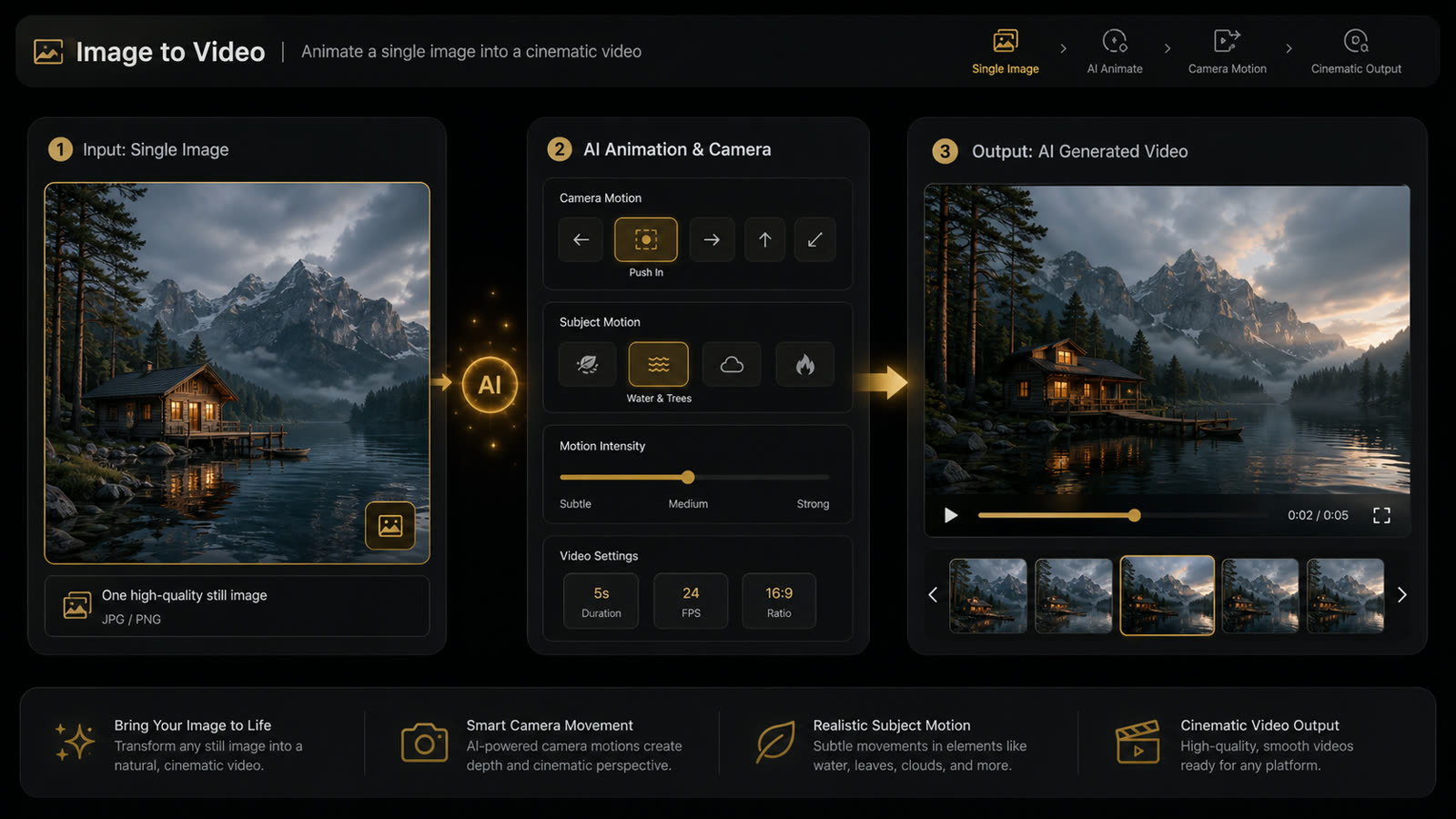
Still image becomes motion
Image to Video starts from one source image and adds camera movement, subject motion, atmosphere, or animation.
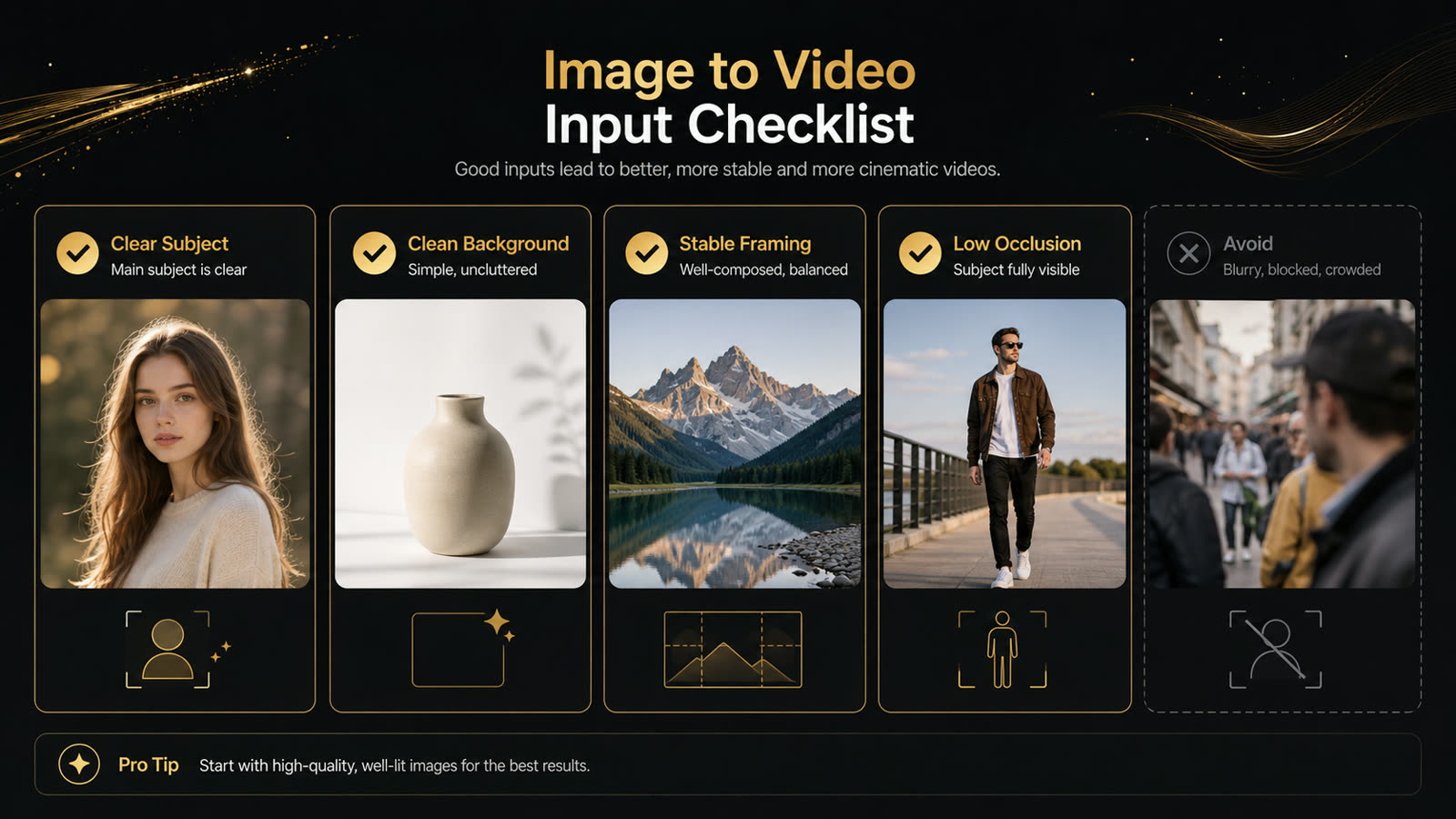
Better source images create cleaner video
Clear subjects, stable framing, clean backgrounds, and low occlusion give the model a stronger visual anchor.
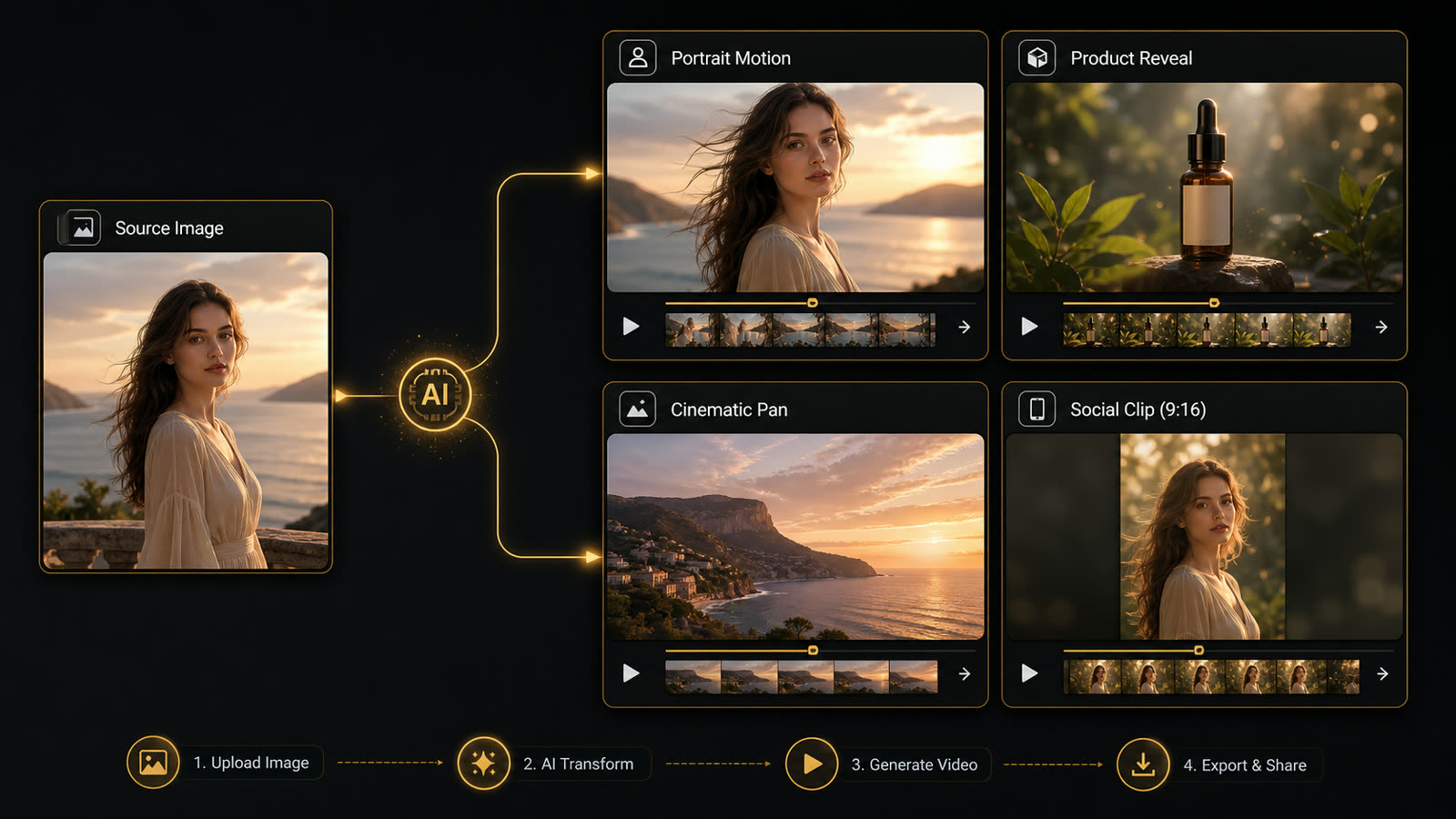
One image can support many clip types
Use the same source image for portrait motion, product reveals, cinematic pans, social hooks, and concept previews.
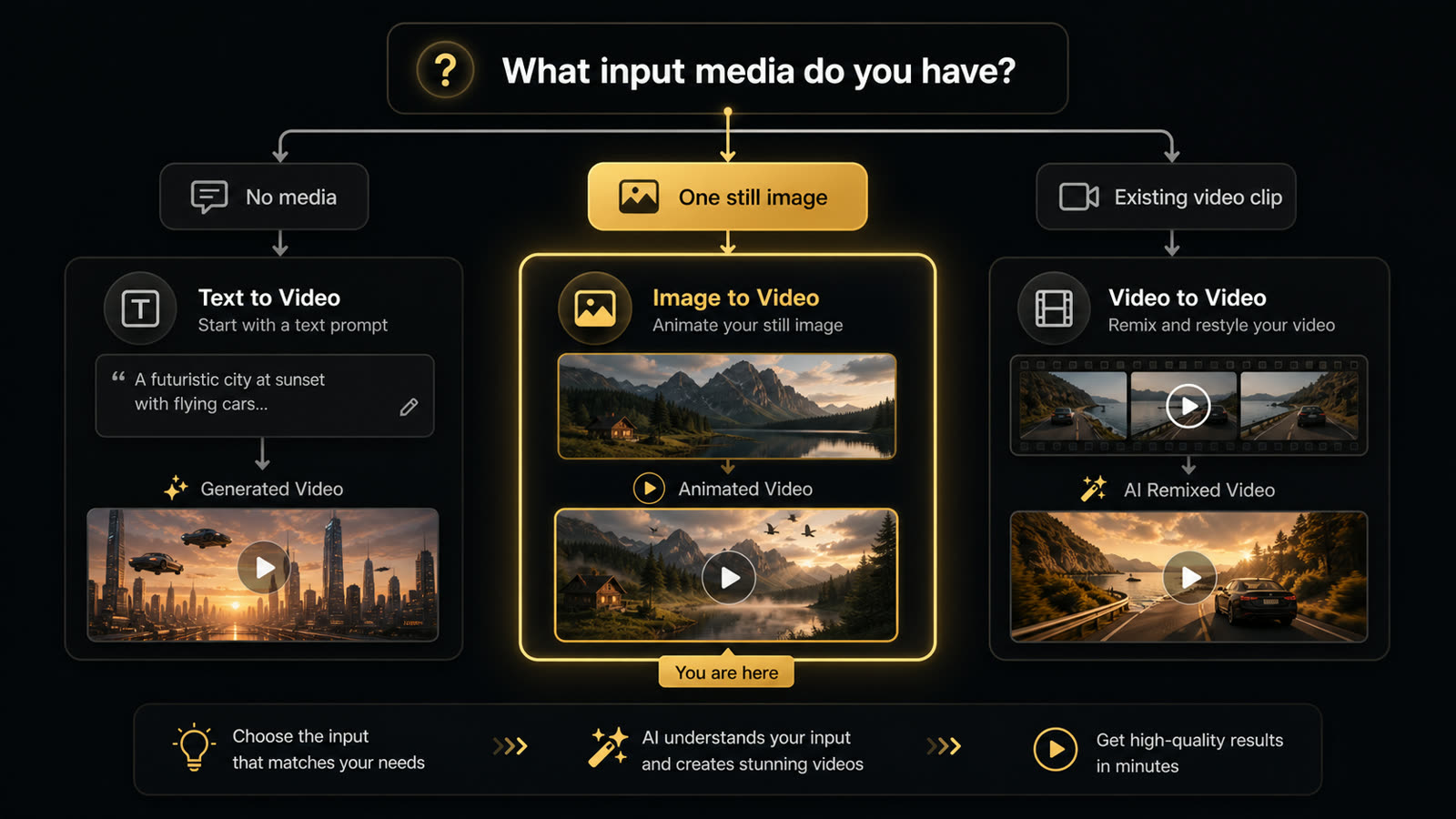
Choose by available input
Use Image to Video when you have one still image. Use Text to Video with no media, or Video to Video with a source clip.
Input strategy
Best Images for Image to Video AI
The best image to video AI results come from source images with one clear subject, readable edges, and a simple motion goal. Choose the input type first, then write the prompt around the movement that input can realistically support.
| Input type | Works well for | Notes |
|---|---|---|
| Portrait photo | Subtle head movement, blinking, hair motion, camera push-in | Use a sharp face, natural lighting, and avoid cropped heads. |
| Product image | Product reveal, slow orbit, studio light sweep, ad concepts | Clean edges and simple backgrounds reduce shape distortion. |
| Character artwork | Pose animation, anime-style movement, concept previews | Clear limbs and a readable silhouette help the model preserve form. |
| Landscape or scene still | Camera pan, parallax, atmosphere, clouds, cinematic depth | Depth layers make motion feel more natural than flat scenes. |
Workflow
How to Turn an Image Into a Video With AI
You do not need video editing experience to turn an image into a video with AI. A strong result usually comes from one clear image, one focused motion idea, and output settings that match where the video will be published.
- Step 1
Upload a clear source image
Start with a sharp portrait, product photo, artwork, or scene image that has one main subject and readable details.
- Step 2
Describe the motion with a prompt
Guide camera movement, subject motion, lighting, mood, and output style with one focused prompt.
- Step 3
Choose output settings
Set aspect ratio, duration, quality, and model before generating so the result fits your publishing channel.
- Step 4
Generate and refine
Create the AI video, review subject stability and motion quality, then refine one variable at a time.
Workflow choice
Image to Video vs Text to Video vs Motion Transfer
These three FluxMov workflows answer different search intents. Use image to video when you have a still image, text to video when you only have an idea, and motion transfer when movement must follow a reference clip.
| Workflow | Use when | Main input | Control level |
|---|---|---|---|
| Image to Video | You already have a still image and want prompt-guided motion from that visual. | One image plus a motion prompt | Best for preserving subject, style, product, or scene identity. |
| Text to Video | You have only an idea, scene description, or script and no source image. | Prompt only | Best for fast ideation when the model can invent the scene. |
| Motion Transfer | You need a character or subject to follow the movement from a reference video. | Character image plus reference motion video | Best for copied body motion, gesture timing, pose changes, and camera rhythm. |
Input quality
What Makes a Good Source Image?
A better input image gives the AI model a cleaner motion target. If the source image is unclear, the generated video may drift, distort, or animate the wrong details.
Image to video input requirements
| Field | Recommended input | Avoid | Why it matters |
|---|---|---|---|
| Source image | JPG, PNG, WebP, or GIF up to 10MB, with one clear main subject. | Heavy blur, tiny faces, crowded scenes, and extreme cropping. | A clean source image gives the model a stable visual anchor. |
| Prompt | Use a 20-60 word scene brief with one camera move and one motion goal. | Contradictory instructions, long prompt stacks, and vague motion. | A focused prompt reduces random movement and visual drift. |
| Aspect ratio | Use 9:16 for short-form social, 16:9 for web, or 1:1 for feeds. | Choosing a format that does not match the publishing channel. | The right frame keeps the generated clip publish-ready. |
| Duration | Start with 4-8 seconds for first tests, then extend if needed. | Long first tests with complex motion and no review pass. | Shorter clips are easier to inspect for subject stability. |
| Resolution | Use 480P for early drafts, then 720P or 1080P for review. | Spending high-quality credits before motion direction is clear. | Draft-first review helps control quality and credit use. |
- Use JPG, PNG, WebP, or GIF images up to 10MB with clear subject details.
- Keep the main subject centered and fully inside the frame.
- Avoid heavy blur, crowded backgrounds, extreme crops, and tiny faces.
- Use clean product edges and stable lighting for commercial visuals.
Face drift
Use a sharper portrait with fewer extreme angles.
Warped product
Reduce motion and upload a cleaner product image.
Busy background
Crop closer to the subject or use a simpler source image.
Overactive motion
Ask for subtle movement and stable framing.
Fit and limits
When Image to Video Works Best and When to Switch
Image to video is prompt-guided animation from a still image. It is not the same as copying motion from a real reference video, so the best workflow depends on how much movement control the project needs.
| Situation | Guidance |
|---|---|
| Works best | Use image to video when the source image already defines the subject, product, character, room, or art style. |
| Use carefully | Use shorter durations and subtle motion for hands, faces, logos, small text, crowded scenes, and reflective products. |
| Use Text to Video instead | Start with text to video when there is no visual asset and the model can invent the scene from a prompt. |
| Use Motion Transfer instead | Switch to motion transfer when the output must follow a real dance, body action, gesture sequence, or exact camera timing. |
Rights
Rights and Privacy Checklist
Image-to-video works best when the visual source is clear and legally safe to use. Review rights before publishing generated clips, especially for portraits, logos, products, and branded assets.
- Use images you own or have permission to use.
- Get portrait rights before publishing videos of real people.
- Review logos, products, and branded assets before commercial use.
- Avoid celebrity likenesses or private images without explicit permission.
Prompts
Image to Video Prompt Templates
Use these image to video AI with prompt examples to move faster. Replace the subject, mood, or platform details with your own project.
Portrait animation
“Animate this portrait with a subtle camera push-in, natural blinking, soft hair movement, and warm cinematic light.”
Product showcase
“Turn this product image into a premium product showcase video with a slow camera orbit, soft studio light sweep, and clean background.”
Landscape motion
“Animate this landscape with drifting clouds, soft sunlight, gentle atmospheric motion, and a slow cinematic pan.”
Artwork and AI images
“Add depth, subtle parallax, floating particles, and soft light movement while preserving the original art style.”
Settings
Choose the Right Settings Before You Generate
A strong AI video generator from image workflow is not only about the prompt. Output settings affect framing, cost, speed, and how usable the final video feels.
Aspect ratio
Use 9:16 for TikTok, Reels, Shorts, and Stories. Use 16:9 for YouTube, websites, and product demos. Use 1:1 for feed posts and ad variations.
Duration
Start with a short 4 to 8 second video when testing a new image. Short clips are easier to control and review.
Quality and credits
Use lower-cost drafts to test motion direction, then increase quality once the concept works.
Free workflow preview and credits
New accounts get 120 free credits after login. Generate your first AI video for free. You can explore the image-to-video workflow before signing in, then check the visible credit estimate before you generate.
Why FluxMov
Why Use FluxMov for Image to Video AI?
FluxMov is built for people who want more than a random animation. It gives you a focused image-to-video workflow with prompt control, model choice, output settings, credit visibility, and generation history in one place.
Controllable AI video workflow
Upload the image, set the format, describe the motion, choose output quality, and generate from one focused workspace.
Better prompts, fewer blind retries
Define the image, camera direction, subject motion, style, and publishing format before spending credits.
Social-ready output controls
Create short clips for TikTok, Instagram Reels, YouTube Shorts, product pages, paid social ads, and creator portfolios.
Clear rights guidance
FluxMov reminds users to upload images they own or have permission to use, especially for portraits and branded assets.
Use cases
What You Can Create
Use FluxMov when you need a fast moving version of a static visual. The best results usually come from a focused image and a clear motion goal.
Portrait motion clips
Create subtle portrait videos with camera movement, soft expression changes, or atmospheric motion.
Product showcase videos
Turn product stills into commercial-style clips with camera push-ins, light sweeps, and clean studio motion.
Social media hooks
Make scroll-ready videos from campaign images, AI visuals, thumbnails, or branded graphics.
Visual concept previews
Test motion direction for mood boards, pitch decks, campaign concepts, and creative reviews.
Artwork animation
Animate illustrations, stylized images, and AI artwork with gentle movement, parallax, and light shifts.
Workflow proof
Workflow Outcomes for Creators and Small Teams
FluxMov supports the practical review loops creators and small teams use before publishing: faster concept testing, clearer motion direction, and fewer blind retries before a polished generation.
Product stills to motion concepts
For product and marketing teams, image-to-video is a fast way to test motion direction before full production.
Image-first short-form testing
For creators, starting from an image keeps the subject and style more consistent while still allowing creative motion.
Credit-conscious review loops
For teams reviewing creative options, quick drafts make it easier to choose the strongest direction.
FAQ
Image to Video AI FAQ
What is an image to video AI generator?
An image to video AI generator turns a still image into a short AI-generated video. The image anchors the subject, style, product, or scene, while the prompt guides motion, camera direction, atmosphere, and output format.
How do I turn a photo into a video with AI?
Upload a clear source image, write a prompt that describes the motion, choose your output settings, and generate the video. FluxMov uses your image as the visual anchor, then adds motion based on your prompt and selected settings.
Is image to video better than text to video?
Image to video is better when you already have a product, face, character, artwork, or scene that must stay recognizable. Text to video is better when you only have an idea and want the AI model to invent the full visual scene.
What images work best for AI image to video?
Clear images with one main subject work best. Use sharp portraits, clean product shots, readable artwork, or landscapes with depth. Avoid heavy blur, crowded backgrounds, extreme cropping, and low-resolution inputs.
When should I use Motion Transfer instead?
Use Motion Transfer when the output needs to follow a reference video for body movement, gesture timing, pose changes, dance motion, or camera rhythm. Image to video is better for prompt-guided motion from one still image.
Related tools
Related Resources
Explore related FluxMov workflows when your project needs a different kind of video control.
Text to Video
Use when you want to start from a written scene idea and do not have a source image.
Create From TextMotion Transfer AI Video Generator
Use when exact body movement, pose changes, or gesture timing should follow a reference clip.
Transfer MotionReplace Character in Video
Use when an existing clip already has the right motion but the visible subject needs to change.
Replace a CharacterGemini Omni AI Video Generator
Use when you want to compare multimodal workflows for text, image, and guided video creation.
View Gemini OmniAI Image Editor
Use when the source image needs cleanup, remixing, or editing before video generation.
Edit an Image FirstStart now
Generate Your Image to Video Clip
You already have the image. Now give it motion. Upload a photo, product image, artwork, or visual concept, add a focused prompt, choose the format that fits your channel, and generate a short AI video with FluxMov. New accounts get 120 free credits after login. Generate your first AI video for free.