
Text to Video AI
AI Text to Video Generator
Quick Answer
FluxMov's AI text to video generator turns a written scene prompt into a short AI video draft. It is best for creators who have an idea but no source image or reference video yet. Choose the model, aspect ratio, duration, resolution, and visible credit settings before generating.
FluxMov is a prompt to video AI workflow for fast creative drafts. Write one focused scene prompt, choose the output settings, and generate a draft you can review, refine, or use as the first cut for a larger creative workflow.
You can explore the workflow without logging in. Sign in only when you are ready to generate.
What Is FluxMov Text to Video AI?
FluxMov text to video AI turns a written scene brief into a short AI video draft. The page is designed for creators who want to test a video idea before they have images, footage, or a motion reference.
Alt text: FluxMov text to video AI dashboard showing prompt, model, aspect ratio, duration, and video preview.
Quick answer
Best for
Control path
Why Text to Video Prompts Fail
Most AI video generator from text tools can start quickly. The harder part is getting a video that matches what you meant. A vague prompt leaves the model to guess the subject, motion, camera, pacing, and visual style.
Vague prompts create random motion
Poor scene direction wastes credits
Missing output settings slow review
Visual workflow
Text to Video AI in Pictures
These images show that Text to Video is the prompt-first workflow: write the scene, pick output controls, generate a draft, then switch workflows only when you have source media.
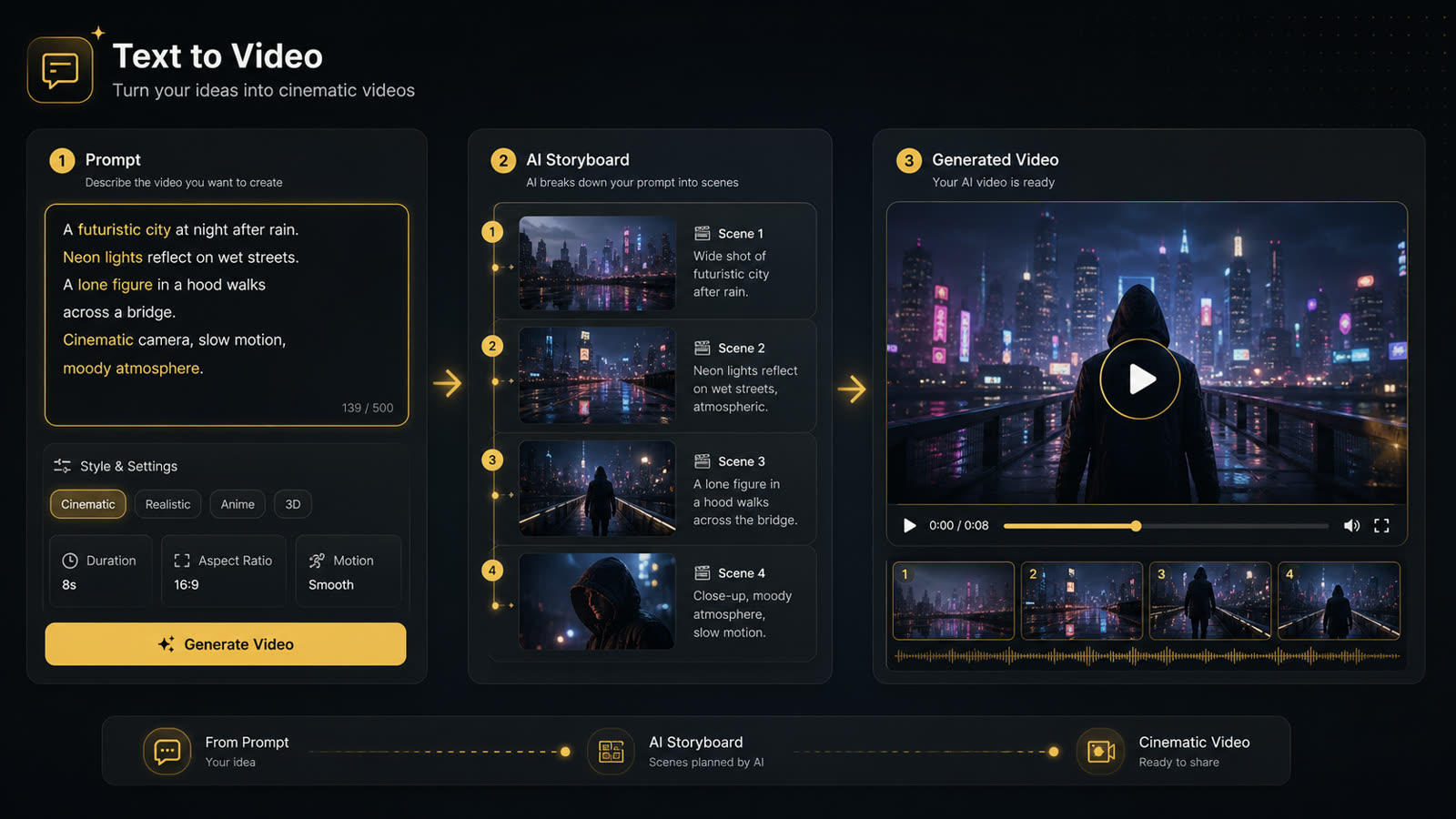
Prompt to storyboard to video
Text to Video starts from a written scene, builds a short visual direction, then generates a reviewable video draft.
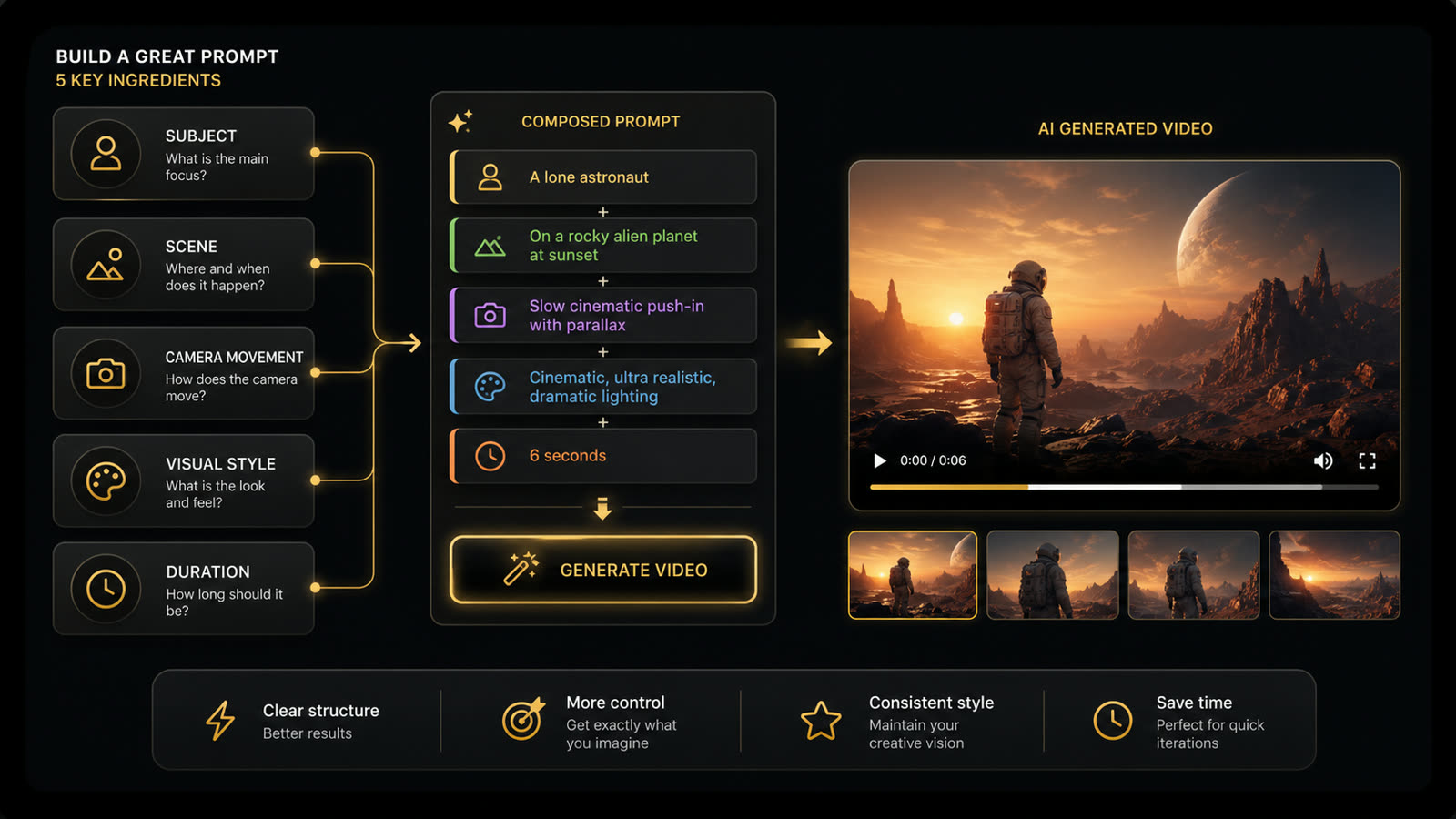
Prompt formula
A stronger prompt names the subject, scene, camera movement, style, and duration before generation starts.
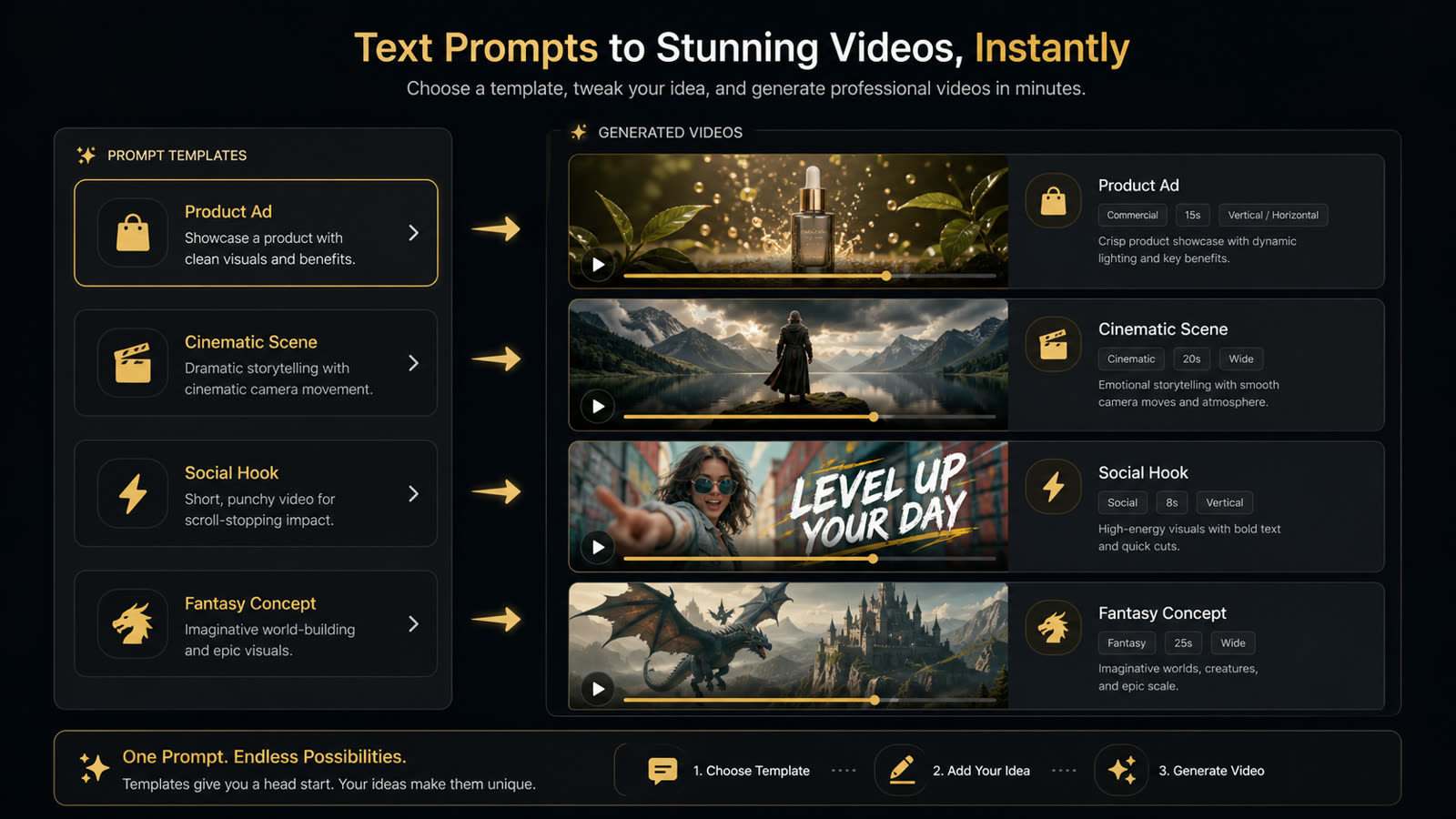
Prompt templates create faster drafts
Use templates for product ads, cinematic scenes, social hooks, and concept tests when you need quick variations.
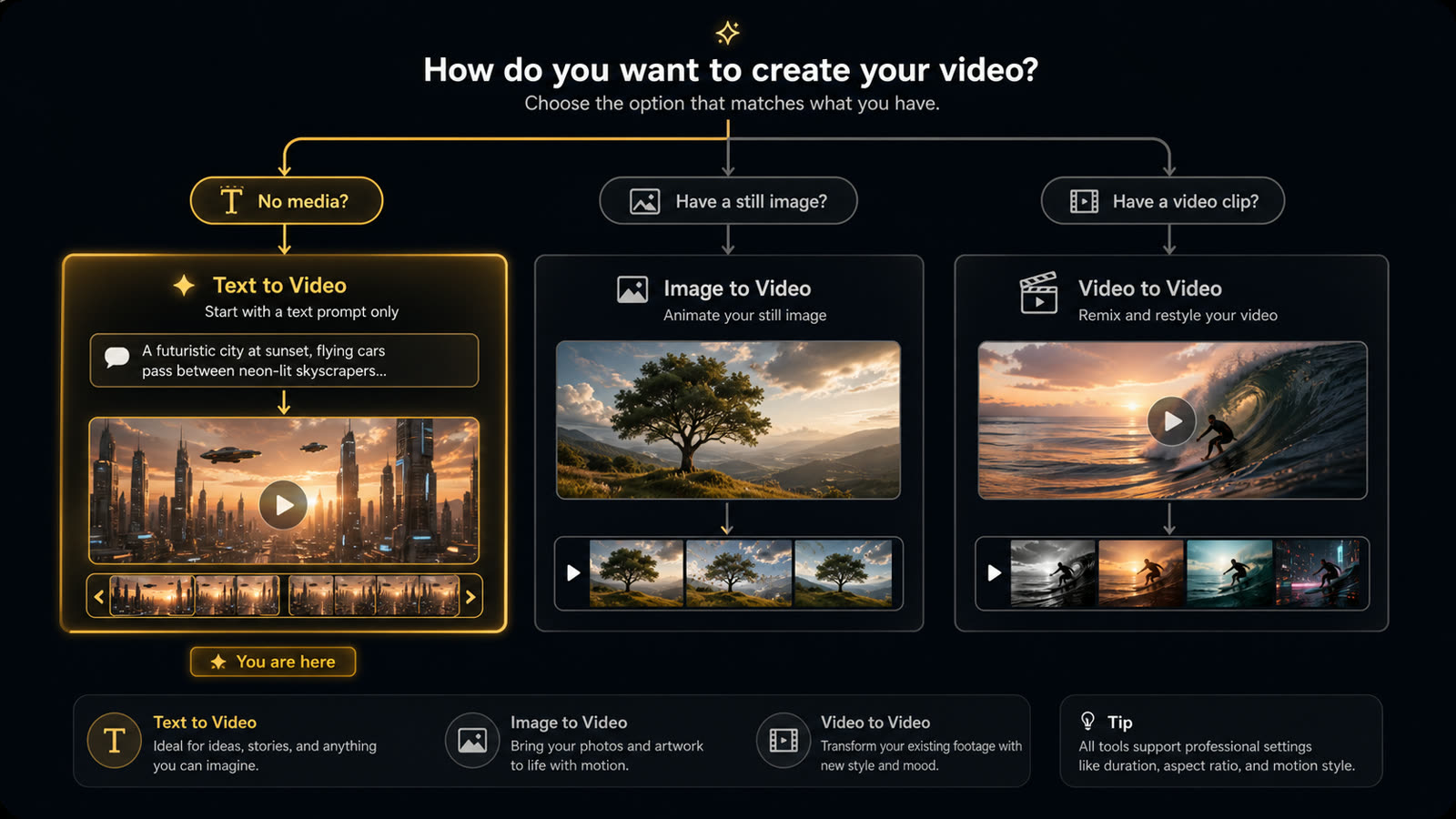
Choose Text to Video when you have no media
Start with a prompt when there is no image or clip yet. Move to Image to Video or Video to Video once media exists.
Should You Use Text to Video, Image to Video, or Motion Transfer?
Choose the FluxMov workflow by the input you already have and the amount of control the video needs.
| Workflow | Use when | Main input | Control level |
|---|---|---|---|
| Text to Video | You have an idea but no source asset yet. | Prompt | Fast draft control |
| Image to Video | You already have a product image, portrait, or design asset. | Image + prompt | More visual control |
| Motion Transfer | Exact movement, gesture, pose, dance, or camera rhythm matters. | Character image + reference video | Strong motion control |
| Replace Character | You want to keep a video scene and replace the visible subject. | Source video + replacement character | Scene-preserving control |
How it works
How to Convert Text to Video With AI
Converting text to video with AI should feel direct: write the scene, choose the output format, generate, then refine. FluxMov keeps this process short so you can test more ideas with less setup.
- 1
Write a scene prompt
Describe the subject, action, setting, camera movement, lighting, and visual style for the video you want to create.
- 2
Choose model and output settings
Select the model, aspect ratio, duration, and resolution that match your publishing format and draft quality needs.
- 3
Generate, review, and refine
Generate the first video draft, review the motion and framing, then adjust the prompt or settings before trying again.
Text to Video Input Requirements and Prompt Guide
A good prompt acts like a compact creative brief. It tells the model what to show, what should happen, how the camera should move, and which output settings should guide the draft. Use this section as a prompt to video AI checklist before spending credits.
Prompt formula
Subject + action + scene + camera movement + lighting + visual style. Use one focused 30-80 word scene brief for the first test.
| Input | Requirement | Why it matters |
|---|---|---|
| Prompt | Use a 30-80 word prompt for one focused scene: subject, action, setting, camera, lighting, and style. | Clear prompts reduce random motion and make each AI video draft easier to judge. |
| Aspect ratio | Choose 16:9, 9:16, 1:1, 4:3, 3:4, or 21:9 before generation. | The output shape should match the platform before generation starts. |
| Duration | Choose 4, 5, 6, 8, 10, or 12 seconds. Start with 4-6 seconds when testing a new prompt. | Short drafts make prompt testing faster and help reduce wasted credits. |
| Resolution | Choose 480P, 720P, or 1080P based on whether you need a quick draft or a more polished review clip. | Higher quality can be useful for polished drafts, while lower resolution is better for fast iteration. |
Social video prompt
A vertical video of a creator opening a minimalist desk setup, quick smooth camera movement, warm morning light, clean lifestyle aesthetic, social media ad style.
Product demo prompt
A close-up product video of a skincare bottle rotating on a marble surface, soft shadows, slow camera push-in, premium beauty commercial style.
Cinematic prompt
A lone astronaut walking across a red desert at sunset, wide cinematic framing, dust moving in the wind, dramatic golden light, realistic sci-fi film style.
Why FluxMov
What Makes FluxMov Different
FluxMov supports practical AI video workflows. Start with text to video for fast drafts. Use image to video when you have a source image. Use motion transfer when movement must follow a reference video.
Visible generation controls before credits
Model-based workflow for short video drafts
Upgrade path to motion control AI
Examples
AI Text to Video Use Cases and Examples
FluxMov helps turn written ideas into video drafts for common creator and marketing workflows.
Alt text: Gallery of AI text to video examples including social video, product ad, explainer, and cinematic scene.
Social Video Concepts
Create vertical clips for hooks, mood shots, content tests, and campaign ideas. Text to video AI is useful when you need several visual directions before choosing one to polish.
Product and Ad Clips
Turn a product concept into a short ad-style video. Describe the object, setting, camera motion, and brand mood to generate quick visual options for review.
Educational Explainers
Create short visual scenes for tutorials, course intros, or concept explainers. Keep the prompt focused on one idea per clip for clearer output.
Character and Scene Experiments
Test characters, environments, camera rhythm, and visual styles before committing to a more controlled workflow.
When Text to Video AI Works Best and When It Fails
Text to video works best when the request is short, visual, and specific. Use a more controlled FluxMov workflow when identity, source imagery, or exact motion matters.
| Category | Guidance |
|---|---|
| Works best | One clear short scene, one main subject, one action, and a prompt that defines camera movement, lighting, and visual style. |
| Use carefully | Brand assets, product shots, likenesses, stylized characters, or client materials that require rights review before use. |
| Avoid | Multi-scene long films, exact character continuity across many clips, unreadable text overlays, and prompts with conflicting styles. |
| Rights check | Only use names, logos, people, products, music, characters, and campaign assets that you have permission to use. |
Workflow Evidence
FluxMov does not show invented ratings on this page. The proof points are visible workflow controls: model, aspect ratio, duration, resolution, and a credit estimate before generation.
Alt text: Creator proof cards describing FluxMov text to video workflow controls and refinement options.
Controls before generation
A path from fast drafts to stronger control
Text to Video AI FAQ
How do I convert text to video with AI?
Write a prompt that describes the subject, action, scene, camera movement, lighting, and style. In FluxMov, choose the model, aspect ratio, duration, and resolution, then generate the video. Review the result and refine the prompt if the motion, style, or framing needs adjustment.
Is FluxMov's AI text to video generator free?
New accounts get 120 free credits after login. Generate your first AI video for free. You can explore the workflow before logging in, then check the visible credit estimate before you generate.
What prompts work best for AI text to video?
The best prompts are specific and visual. Include one main subject, one clear action, a scene, camera movement, lighting, and style. Avoid vague requests like "make it cinematic" unless you also explain what the video should show.
Can I choose aspect ratio and video length?
Yes. FluxMov lets you choose common aspect ratios such as vertical, widescreen, square, and other formats supported by the selected model. You can also choose available video durations and resolution settings before generation.
When should I use image to video instead?
Use text to video when the idea starts as a written scene and you do not have source art yet. Use image to video when you already have a product image, portrait, design, or character reference that should guide the look of the output.
Related AI Video Workflows
Use the FluxMov workflow that matches how much control your project needs.
Image to Video
Animate a product image, portrait, character, or design asset into a short AI video.
Use when: Use when the visual identity already exists.
Open Image to VideoMotion Transfer AI Video Generator
Use a reference video to guide movement, gestures, pose changes, dance, or camera rhythm.
Use when: Use when the exact movement matters more than the prompt.
Try Motion TransferReplace Character in Video AI
Keep the scene and motion from an existing video while changing the visible character.
Use when: Use when you want to preserve a source video scene.
Replace a CharacterMotion Control AI
Explore the broader FluxMov workflow for controllable character motion and creator videos.
Use when: Use when you need a wider motion-control workflow.
Explore Motion Control AIAlt text: FluxMov AI text to video generator showing a completed prompt-based video draft ready for review.
Start Creating With Text to Video AI
Your next video can start with one prompt. Describe the scene, choose the format, generate a draft, and refine it until the idea is clear enough to publish, pitch, or build on. New accounts get 120 free credits after login. Generate your first AI video for free.
Generation uses credits. Review the visible credit estimate before starting a video.
Last updated: May 29, 2026