
Reference Image to Video AI
Reference to Video AI Generator for Image-Guided Clips
Quick Answer
FluxMov's Reference to Video AI Generator turns one reference image and a prompt into a short guided AI video. Use it when the subject, product look, character style, or visual direction should come from an image instead of prompt text alone.
Upload a reference image, write a scene prompt, choose output settings, and generate a short AI video guided by the subject, style, product look, or visual direction in your image.
New accounts get 120 free credits after login. Generate your first AI video for free. You can inspect the workflow before signing in, then review the credit estimate before generation.
Alt text: FluxMov reference to video AI workbench showing a reference image upload, prompt field, model selector, aspect ratio, video length, quality, and credit estimate.
Best for
Main input
Control boundary
What Problem Does Reference to Video AI Solve?
Prompt-only AI video can drift when the subject, style, product, or character look is hard to describe. Reference to Video AI gives the generator a visible anchor first, then uses the prompt to describe what should happen in the clip.
Prompts cannot carry every visual detail
Fast drafts need visible constraints
Different video goals need different workflows
Visual workflow
Reference to Video AI in Pictures
These visuals show that Reference to Video starts from a still image, not an existing clip. Use them to choose the right input before spending credits.
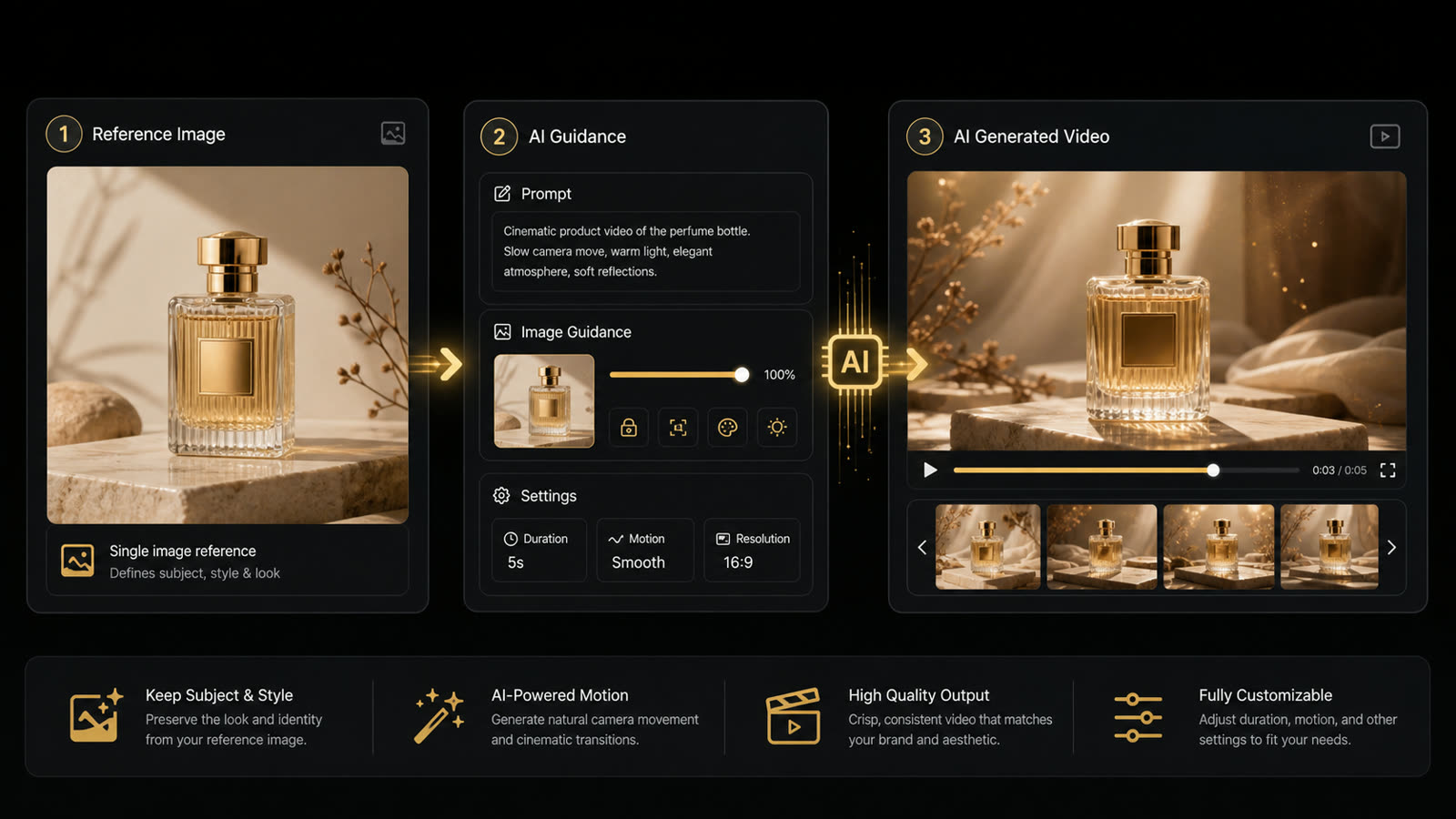
Reference image guides the video
A still image acts as the visual anchor, while the prompt adds scene, motion, camera, and mood direction.
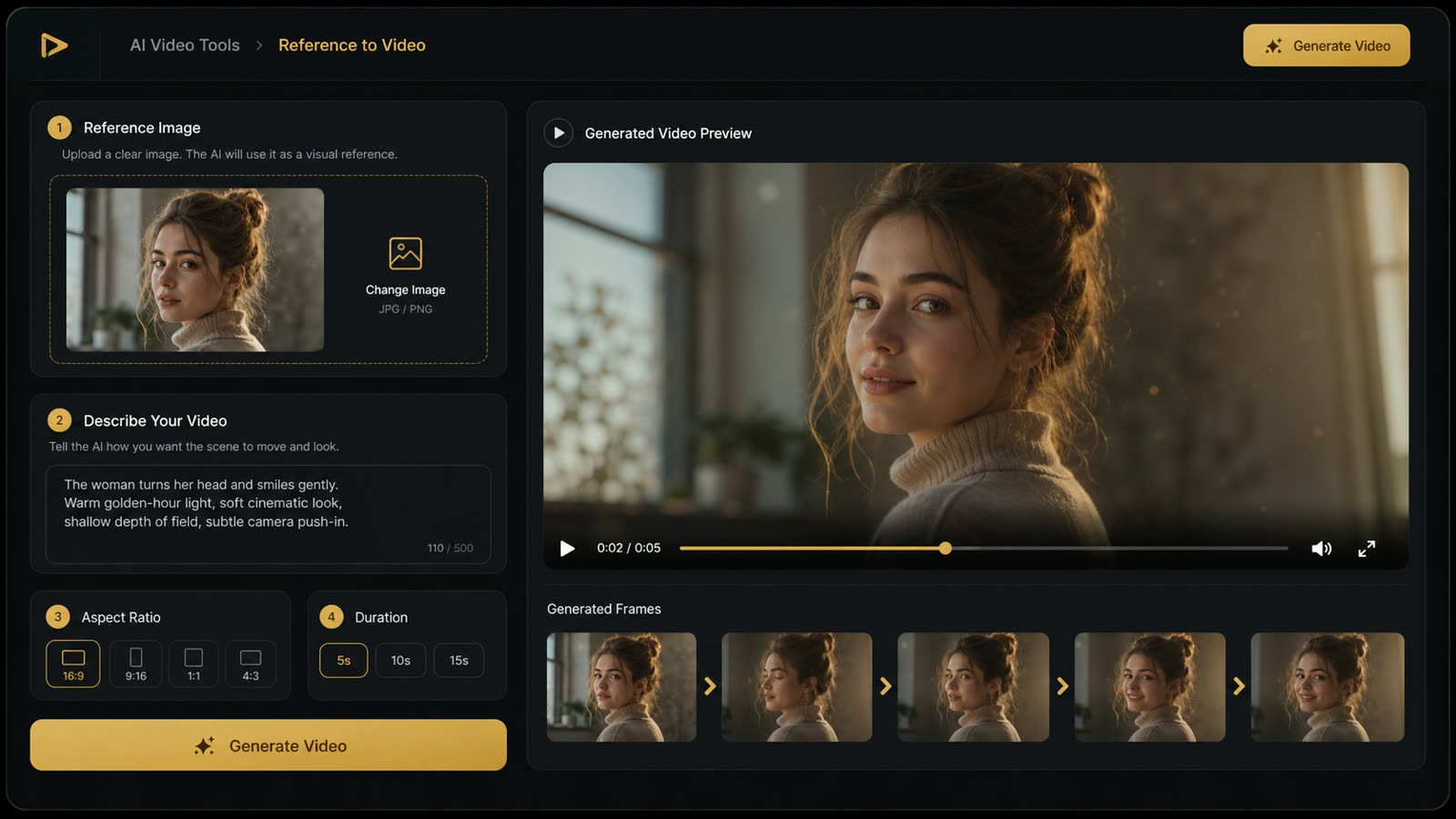
Image-guided workspace
The page starts from a reference image, then combines prompt, model, aspect ratio, length, and preview controls.
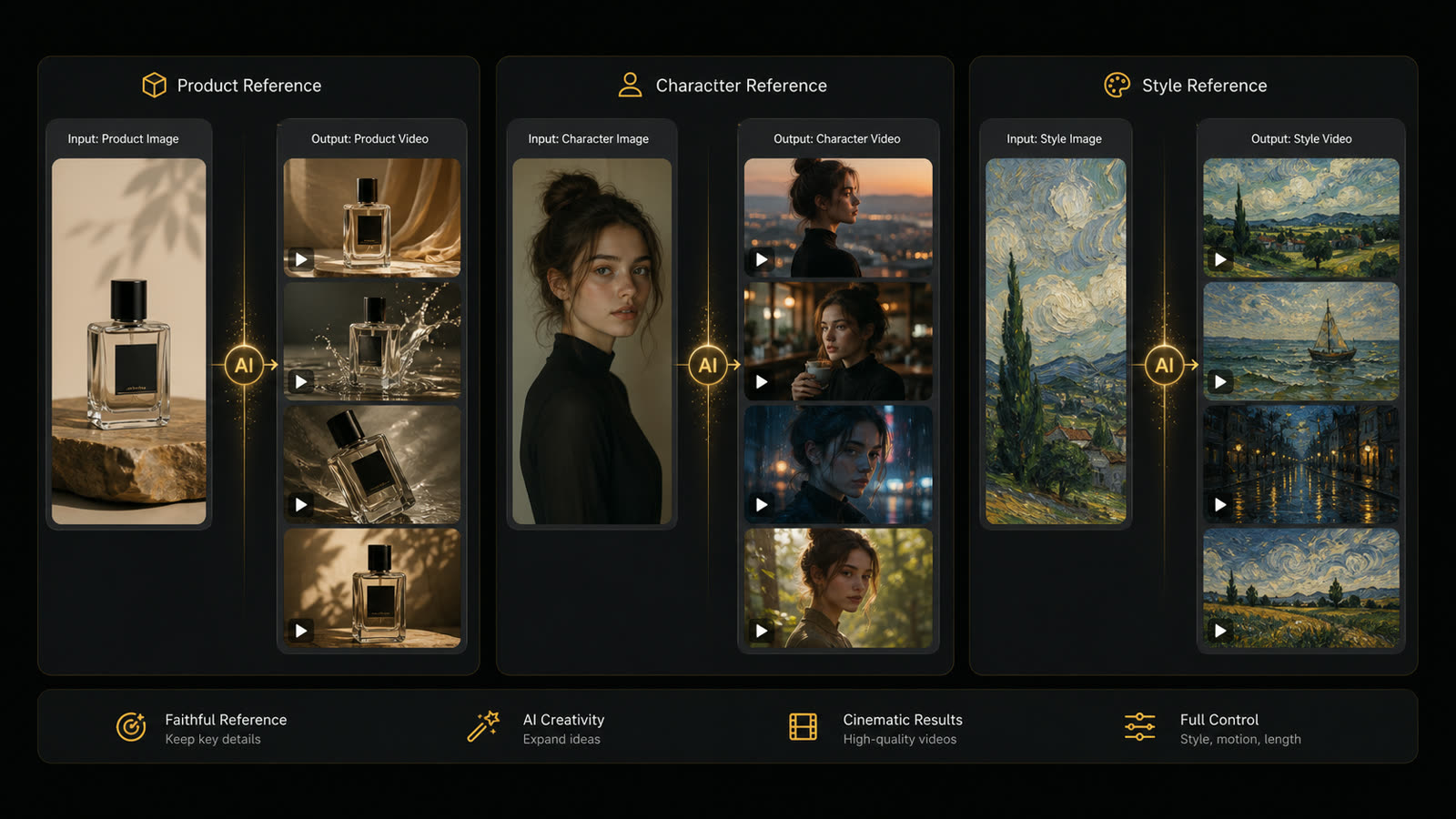
Product, character, and style references
Use product photos, character images, or visual style references when the generated clip should follow a specific look.
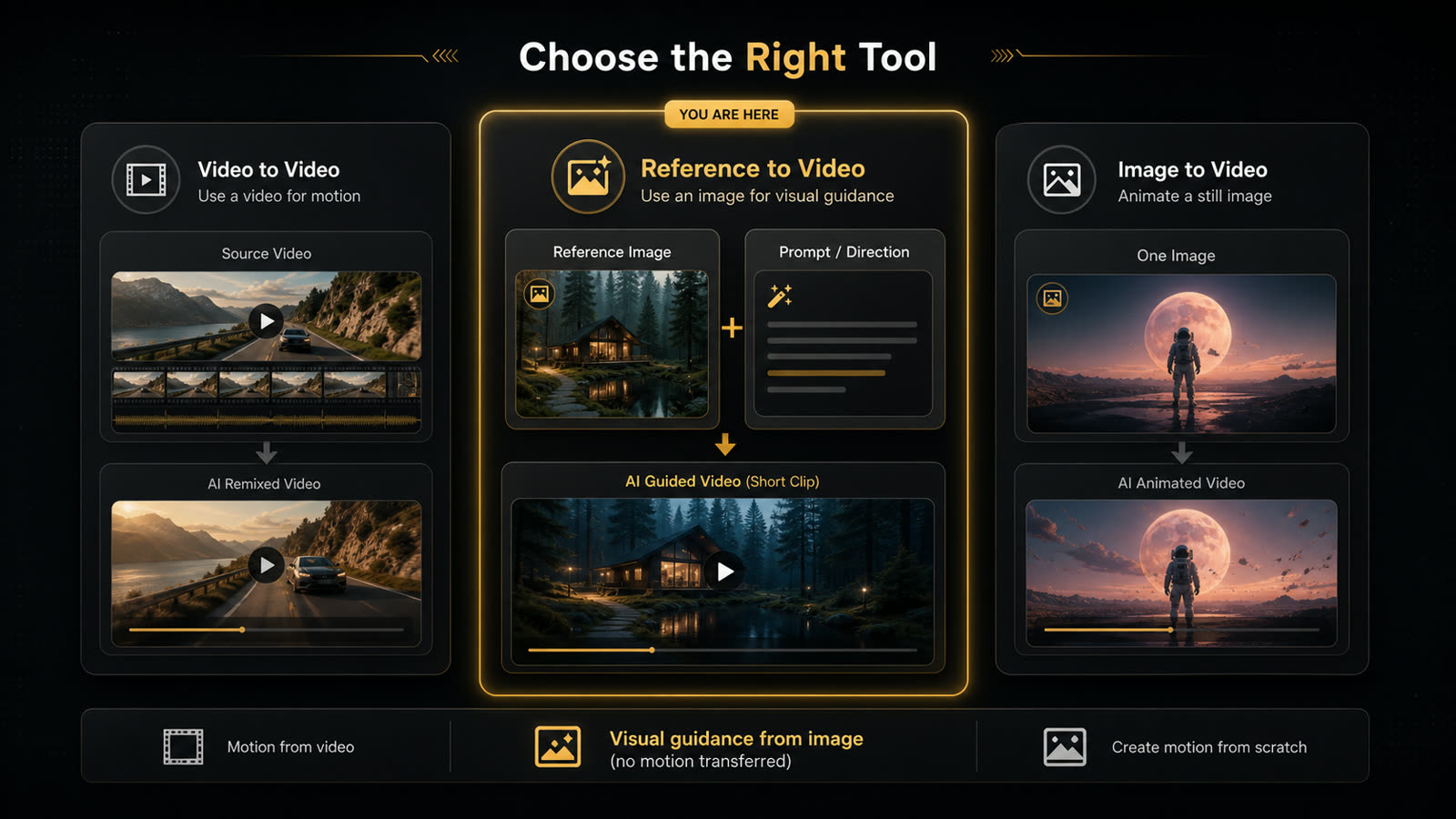
Reference image vs source video
Reference to Video is image-guided. Switch to Video to Video when an existing clip should control timing or camera rhythm.
Reference to Video vs Image to Video vs Video to Video
Choose the FluxMov workflow by the input you have and the control problem you need to solve.
| Workflow | Best for | Main input | Use when |
|---|---|---|---|
| Reference to Video | Keeping a subject, style, product look, or visual direction close to a reference image. | Reference image + prompt | The look matters more than exact source-frame animation. |
| Image to Video | Animating one still image into a short clip. | Source image + prompt | The uploaded image should be the visible starting point. |
| Video to Video | Guiding a new clip with movement, timing, camera rhythm, or an existing clip. | Source video + subject image or prompt | The source of control is a video rather than a still image. |
| Text to Video | Creating a quick video concept from a written scene. | Prompt | You do not have a source image yet. |
| Motion Transfer | Copying movement, pose timing, gestures, or dance rhythm. | Character image + motion reference workflow | Exact movement matters more than visual style guidance. |
How it works
How to Use Reference to Video AI
The workflow is built for quick review loops. Keep the reference simple, make the prompt specific, and change one variable at a time when refining the result.
1. Upload a clear reference image
2. Write the scene and motion prompt
3. Choose model and output settings
4. Generate, review, and refine
Input requirements
Best Inputs for Image-Guided Video
Strong reference-to-video results depend on a clean visual anchor and a prompt that adds motion direction instead of repeating what the image already shows.
| Field | Recommended input | Why it matters |
|---|---|---|
| Reference image | Use one sharp image with a clear main subject, readable style, and minimal clutter. | A clean reference gives the model a stronger visual anchor for subject, style, and composition. |
| Prompt | Use 20-60 words to describe action, camera motion, setting, lighting, and the desired video mood. | The prompt explains what should change over time while the reference image explains what should stay recognizable. |
| Aspect ratio | Choose the output frame before generation, such as vertical for short-form social or widescreen for web video. | Framing decisions affect how much of the reference subject can stay visible in the generated clip. |
| Video length | Start with a short clip for first tests, then extend only after the reference look and motion direction work. | Short tests make it easier to find drift, warped details, or weak prompt direction before using more credits. |
| Rights | Upload only images, products, people, logos, and characters you own or have permission to use. | Reference-led generation still depends on the rights and permissions attached to the input media. |
Use Cases for Reference to Video AI
Reference to Video AI is useful when a team has a visual anchor but still needs motion, camera direction, and a short publishable video draft.
Creator and social clips
Product and e-commerce videos
Character and avatar tests
Creative direction previews
Where Reference to Video Works Best and Where It Does Not
Reference to Video AI improves visual guidance, but it does not remove the need for clean inputs, rights checks, and short review cycles.
| Decision | Guidance |
|---|---|
| Works best | One clear reference image, one main subject, one short scene, and a prompt that defines action, camera movement, and mood. |
| Use carefully | Faces, products, logos, client assets, or stylized characters that need rights review or exact brand approval. |
| Avoid | Crowded reference images, tiny subjects, unreadable text, conflicting prompt directions, and long multi-scene requests. |
| Choose Motion Transfer instead | Use Motion Transfer when the main goal is exact dance motion, gesture timing, pose path, or movement from another clip. |
Why Use FluxMov for Reference to Video?
FluxMov keeps the reference workflow connected to practical video controls and adjacent generation modes, so the page works as a production tool instead of only a prompt box.
Visual anchor before generation
Visible settings and credit estimate
Clear path to related workflows
FAQ
Reference to Video AI FAQ
Short answers for common questions about image-guided AI video generation, workflow choice, input quality, and usage rights.
What is a reference to video AI generator?
A reference to video AI generator creates a short video from a visual reference image and a prompt. The image guides the subject, product look, character style, or composition, while the prompt describes action, setting, camera movement, and mood.
How is Reference to Video different from Image to Video?
Image to Video usually animates the uploaded image as the main source frame. Reference to Video uses the image as guidance for the generated video, so it is better when you want the output to follow a subject, style, or creative direction rather than simply animate one still.
How is Reference to Video different from Video to Video?
Reference to Video starts from a still image and uses it as visual guidance. Video to Video starts from a source video or existing clip, so it is stronger when movement, camera rhythm, timing, or the source clip structure should guide the new result.
What is the best reference image for AI video generation?
Use a sharp image with one main subject, readable edges, clear lighting, and enough detail for the model to follow. Avoid tiny faces, heavy blur, busy backgrounds, extreme crops, and images where the subject is hard to identify.
Can I use a product photo as the reference image?
Yes. A clean product photo is a strong input when you want the generated clip to keep the product shape, color, material, or packaging direction recognizable. Add a prompt that explains scene, camera movement, lighting, and intended use.
Is Reference to Video good for character consistency?
It can help keep a character look, outfit, pose language, or visual style closer to the reference image, especially in short clips. For strict identity control or approved brand characters, review each output carefully and use clean reference inputs.
When should I use Motion Transfer instead?
Use Motion Transfer when the main goal is movement control, such as dance motion, gesture timing, pose changes, or body movement from another clip. Reference to Video is better when the main control source is a still image.
Can I use generated reference-to-video clips commercially?
Commercial use depends on your rights to the reference image, the people or brands shown, provider terms, and local laws. Only upload media you are allowed to use, especially for portraits, products, logos, branded assets, and recognizable characters.
Related tools
Related Resources
Continue with the FluxMov workflow that matches the next control problem in your video project.
Image to Video
Animate one source image directly when the uploaded frame should be the visible starting point.
Open Image to VideoText to Video
Start from a written scene brief when you do not have a reference image yet.
Create From TextVideo to Video AI
Use when a source video or existing clip should guide movement, timing, or camera rhythm.
Open Video to VideoMotion Transfer AI Video Generator
Use when exact movement, pose timing, gesture rhythm, or dance motion matters.
Try Motion TransferReplace Character
Use when an existing video has the right scene and motion but the visible subject needs to change.
Replace a Character